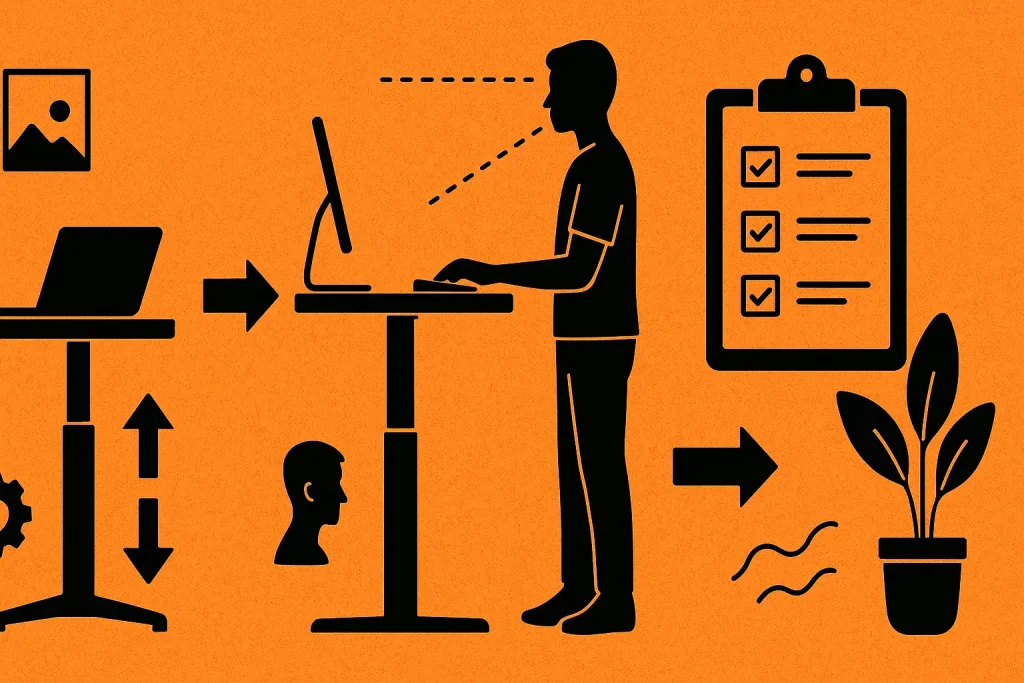
Your home office is making you hurt.
Maybe it’s the dining chair you’ve been using for six months. Or the laptop perched on a stack of books. Perhaps it’s the neck pain that starts around 2 PM and doesn’t quit until you finally close your computer for the day.
Working from home should be comfortable. It should energize you, not drain you.
The good news? Setting up a proper ergonomic workspace isn’t complicated. You don’t need a degree in occupational health or a massive budget. What you need is a clear plan and the right setup.
This guide walks you through every step of creating a home office that actually supports your body. One that lets you work productively without the aches and pains.
Why Ergonomics Matter More Than You Think
Ergonomics isn’t just corporate jargon. It’s the science of designing your workspace to fit your body, not forcing your body to adapt to poor furniture.
Poor ergonomics leads to real problems:
- Chronic neck and shoulder pain
- Lower back issues that worsen over time
- Carpal tunnel syndrome and repetitive strain injuries
- Eye strain and headaches
- Fatigue and decreased productivity
These aren’t minor inconveniences. They’re health issues that can sideline your career and quality of life.
A standing desk forms the foundation of an ergonomic home office. But the desk alone isn’t enough. You need the complete setup.
Step 1: Choose the Right Standing Desk for Your Space
Before you can set up an ergonomic office, you need the right desk.
Measure Your Available Space
Don’t guess. Measure.
You need to know:
- How wide your desk can be
- How deep (front to back)
- Whether you have wall space or need a corner setup
- Where the nearest power outlet is located
Leave at least 36 inches of clearance behind your desk for your chair. You need room to move.
Determine Your Height Requirements
Standing desks aren’t one-size-fits-all. Your height dictates the desk’s adjustment range you’ll need.
For standing:
- 5’0″ to 5’4″: desk should reach approximately 38-42 inches
- 5’5″ to 5’9″: desk should reach approximately 42-46 inches
- 5’10” to 6’2″: desk should reach approximately 46-50 inches
- 6’3″ and taller: desk should reach 50+ inches
For sitting: Most people need a desk that lowers to 28-30 inches for proper seated posture.
Consider Your Equipment Load
How much gear sits on your desk?
Add up the weight of:
- Computer or laptop
- Monitors (one or multiple)
- Keyboard and mouse
- Desk lamp
- Office supplies
- Any other equipment
Choose a desk with a weight capacity that exceeds your total by at least 20%. This ensures stability and longevity.
Select Between Manual and Electric
Electric desks cost more but change the game. Why?
You’ll actually use them. When adjustment takes two seconds instead of two minutes, you switch positions frequently. That’s the entire point.
Manual cranks sound economical until you’re cranking the desk up and down three times a day. Most people stop bothering.
If budget allows, go electric.
Ready to explore your options? Check out quality standing desks that fit various budgets and spaces to find the perfect match for your home office needs.
Step 2: Position Your Desk in the Room
Location matters more than you’d think.
Natural Lighting Considerations
Windows are tricky. You want natural light, but glare on your screen causes eye strain and headaches.
Best practice: Position your desk perpendicular to windows. This gives you natural light from the side without direct glare on your monitor.
If you must face a window, invest in good blinds or curtains. If your back is to the window, you’ll create shadows on your work surface and likely suffer screen glare.
Minimize Distractions
Can you see the TV from your desk? Move the desk.
Your field of vision should include your work, not temptations. Face a wall if that’s what it takes. Boring beats distracted.
Allow for Movement
Don’t trap yourself in a corner. You need space to:
- Roll your chair in and out
- Stand without hitting furniture
- Move around during breaks
- Adjust the desk height comfortably
Leave clearance on at least two sides of your desk.
Step 3: Set Up Your Monitor at the Perfect Height
Your monitor setup can make or break your ergonomic office.
The One-Monitor Setup
Height: The top of your screen should be at or slightly below eye level. Not the middle. Not the bottom. The top.
When you’re looking straight ahead, your eyes should meet the upper third of the screen.
Distance: Sit (or stand) at arm’s length from your monitor. That’s about 20-26 inches for most people. If you need to lean forward to read text, your font size is too small or your monitor is too far away.
Angle: Tilt the monitor back 10-20 degrees. This reduces glare and neck strain.
The Multi-Monitor Setup
Two monitors? Position them differently depending on usage.
If you use both equally: Place them side-by-side with no gap. The meeting point should be directly in front of you. This minimizes neck rotation.
If you have a primary monitor: Put your main screen directly in front. Position the secondary monitor to the side at a 30-degree angle. You’ll turn your head to view it, but only occasionally.
Laptop Users Need Special Attention
Laptops are ergonomic nightmares. The screen sits too low, forcing you to look down constantly.
Solution: Get a laptop stand that elevates the screen to proper eye level. Then add an external keyboard and mouse.
Yes, this means buying extra equipment. But your neck will thank you.
Step 4: Configure Your Keyboard and Mouse Position
Your hands, wrists, and arms need proper positioning to avoid repetitive strain injuries.
Keyboard Placement
When standing or sitting, your elbows should form a 90-degree angle with your keyboard.
Your wrists should be neutral. Not bent up. Not bent down. Straight.
The test: Stand at your desk (or sit in your chair). Let your arms hang naturally at your sides. Now bend your elbows to 90 degrees. That’s where your keyboard should be.
Mouse Matters
Keep your mouse on the same surface level as your keyboard. Reaching up or down to use it strains your shoulder.
Position it close to your keyboard. You shouldn’t have to reach more than a few inches to grab it.
If you spend hours mousing (designers, gamers, spreadsheet warriors), consider an ergonomic mouse that supports your hand’s natural position.
Keyboard Trays: Worth It?
Sometimes. Keyboard trays let you position your input devices independently from your desktop.
They’re especially useful if:
- Your desk height doesn’t perfectly match your elbow height
- You need more desktop space for other work
- You want different keyboard positions for sitting versus standing
Skip them if your desk adjusts to the perfect height and you have adequate space.
Step 5: Optimize Your Chair for Sitting Periods
Don’t stand all day. You need a quality chair for sitting intervals.
Chair Height Adjustment
When sitting, your feet should rest flat on the floor. Your thighs should be parallel to the ground or angled slightly downward.
If your feet dangle, the chair is too high. If your knees are higher than your hips, it’s too low.
Can’t get the right height? Use a footrest to compensate.
Lumbar Support Is Non-Negotiable
Your lower back needs support. The chair’s backrest should have a curve that matches your spine’s natural curve.
If your chair lacks proper lumbar support, add a cushion. A rolled towel works in a pinch.
Armrest Positioning
Armrests should support your forearms when your shoulders are relaxed. They shouldn’t push your shoulders up or force them down.
If you can’t adjust them properly, consider removing them. Bad armrests are worse than no armrests.
Step 6: Add Essential Ergonomic Accessories
A few key accessories transform good setups into great ones.
Anti-Fatigue Mat
This isn’t optional if you stand regularly.
Standing on hard floors fatigues your legs and back. Anti-fatigue mats have cushioned surfaces that reduce stress on your joints.
Look for mats that are:
- 3/4 to 1 inch thick
- Made of polyurethane or rubber
- Large enough for you to shift positions (at least 20×30 inches)
- Easy to clean
Monitor Arm
A monitor arm frees up desk space and allows infinite positioning adjustments.
You can pull the screen closer for detailed work, push it back for video calls, and adjust the height independently from your desk.
Single-monitor arms start around $100. The flexibility is worth every penny.
Cable Management Solutions
Tangled cables are more than ugly. They’re hazardous.
When your desk moves up and down, cables can get caught, pulled, or damaged. Organize them with:
- Cable trays that attach under your desk
- Velcro cable ties
- Cable sleeves that bundle multiple cords
- Clips that route cables along desk legs
Clean cable management also makes your space feel more professional and less chaotic.
Task Lighting
Overhead lighting creates shadows and eye strain. You need dedicated task lighting.
Position a desk lamp to illuminate your work surface without creating glare on your screen. LED lamps with adjustable brightness and color temperature work best.
Warm light (2700-3000K) reduces eye strain during long work sessions.
Step 7: Program Your Desk Height Presets
If you have an electric standing desk with memory settings, use them.
Finding Your Perfect Sitting Height
- Adjust your chair to proper height (feet flat, thighs parallel)
- Lower your desk until your elbows are at 90 degrees when typing
- Check that your wrists are neutral
- Save this as Preset 1
Finding Your Perfect Standing Height
- Stand naturally with your shoes you’ll wear while working
- Let your arms hang, then bend elbows to 90 degrees
- Adjust the desk to meet your hands
- Verify your wrists are neutral when typing
- Save this as Preset 2
The Tall Standing Position (Optional)
Some people like a third preset about 2-4 inches higher than normal standing height. This works well for:
- Taking video calls (higher camera angle)
- Reading documents without typing
- Brief standing breaks
Save this as Preset 3 if your desk allows it.
Step 8: Create Your Sit-Stand Schedule
Having a standing desk means nothing if you don’t use it properly.
Start Gradually
Don’t immediately stand for hours. Your body needs adaptation time.
Week 1: Stand for 15-20 minutes every hour
Week 2: Stand for 25-30 minutes every hour
Week 3: Stand for 30-40 minutes every hour
Week 4 and beyond: Find your natural rhythm, typically 30-45 minutes standing per hour
Set Reminders
Use your phone, computer, or a simple timer. Set alerts to switch positions every 30-60 minutes.
Most people get absorbed in work and forget to change positions. Reminders keep you honest.
Listen to Your Body
Sore feet? Sit down. Stiff back? Stand up.
There’s no perfect ratio that works for everyone. Some days you’ll stand more. Other days less. Flexibility is the goal, not rigid adherence to arbitrary rules.
Step 9: Fine-Tune the Details
Small adjustments make huge differences in long-term comfort.
Screen Distance Check
Extend your arm toward the screen. Your fingertips should just touch it. That’s the right distance for most people.
If you wear progressive lenses or bifocals, you might need the screen slightly lower and farther back.
Reduce Screen Glare
Glare causes headaches and eye strain. Combat it by:
- Adjusting your monitor’s brightness to match ambient lighting
- Using matte screen protectors
- Positioning your desk to avoid window reflections
- Closing blinds during peak glare hours
Document Holder Placement
If you reference physical documents while typing, use a document holder positioned between your keyboard and monitor.
This prevents constant neck twisting between your screen and desk surface.
Phone Positioning
Where’s your phone? If you’re constantly looking down at it, you’re negating your ergonomic setup.
Keep your phone at eye level when possible, or limit usage during work hours.
Step 10: Maintain Proper Posture Throughout the Day
Perfect equipment means nothing with terrible posture.
Standing Posture Checklist
- Weight evenly distributed on both feet
- Knees slightly bent (never locked)
- Core gently engaged
- Shoulders back and down
- Chin tucked (not jutting forward)
- Arms relaxed at sides when not typing
Sitting Posture Checklist
- Feet flat on floor or footrest
- Thighs parallel to ground
- Lower back supported
- Shoulders relaxed
- Elbows at 90 degrees
- Wrists neutral
The Two-Minute Posture Reset
Every hour, take two minutes to:
- Roll your shoulders backward five times
- Tilt your head side to side gently
- Stretch your wrists and fingers
- Take five deep breaths
- Walk around briefly if possible
These micro-breaks prevent stiffness and keep circulation flowing.
Common Ergonomic Mistakes to Avoid
Even with great equipment, people sabotage their setup.
Mistake #1: Monitors Too Low
This is the most common error. People position monitors at convenient heights, not ergonomic ones.
Your monitor is too low if you’re looking down more than 15 degrees. Raise it.
Mistake #2: Sitting Too Long (Or Standing Too Long)
Either extreme causes problems. Movement is the goal.
Sitting for four hours straight is bad. Standing for four hours straight is also bad. Switch positions regularly.
Mistake #3: Poor Lighting
Squinting at your screen in dim light? Eye strain guaranteed.
Illuminate your workspace properly. Your eyes shouldn’t work harder than necessary.
Mistake #4: Ignoring Early Warning Signs
That slight ache in your wrist? Address it now. Waiting until it’s severe pain means you’ve developed a repetitive strain injury.
Early intervention prevents serious problems.
Mistake #5: Skipping the Anti-Fatigue Mat
“I don’t need one” is what everyone says until they try one.
Standing on hard floors is punishing. The mat is a small investment that makes standing sustainable.
Beyond the Basics: Taking Your Setup Further
Once you’ve mastered the fundamentals, consider these upgrades.
Ergonomic Footwear
What you wear on your feet matters when standing. Proper arch support and cushioning reduce fatigue significantly.
Keep a comfortable pair of shoes at your desk specifically for standing sessions.
Active Sitting Options
Balance ball chairs, kneeling chairs, and wobble stools add variety to your sitting time.
They’re not replacements for a good office chair, but they’re excellent supplements that engage different muscle groups.
Regular Exercise
No ergonomic setup replaces physical activity. Stretching, strength training, and cardiovascular exercise all support your body’s ability to handle desk work comfortably.
Even 15 minutes of morning stretching makes your workday more comfortable.
Your Ergonomic Home Office Awaits
Setting up an ergonomic home office with a standing desk isn’t rocket science. It’s simply a matter of following proven principles and making small adjustments until everything feels right.
Start with a quality adjustable desk. Position it properly. Set up your monitor, keyboard, and mouse at the correct heights. Add necessary accessories. Program your presets. Create a sit-stand schedule.
Then refine. Pay attention to what your body tells you. Make micro-adjustments. Develop habits that support long-term comfort.
Your workspace should energize you, not exhaust you. It should support your productivity, not hinder it.
The time you invest in creating a proper ergonomic setup pays dividends in reduced pain, increased focus, and better overall health. Your future self will thank you for the effort you make today.
Stop tolerating discomfort. Build a workspace that works with your body, not against it.